











Every bet placed on Throne Bet generates a digital ticket that records the details of your wager. That ticket is your proof of the bet: it contains the stake, the odds, the selections, and the potential payout. Knowing how to check its status quickly removes uncertainty after a match ends. This guide covers the available methods for players in Tanzania: checking through a browser, using the ticket number, entering a ticket code, and scanning a printed slip through the mobile app.
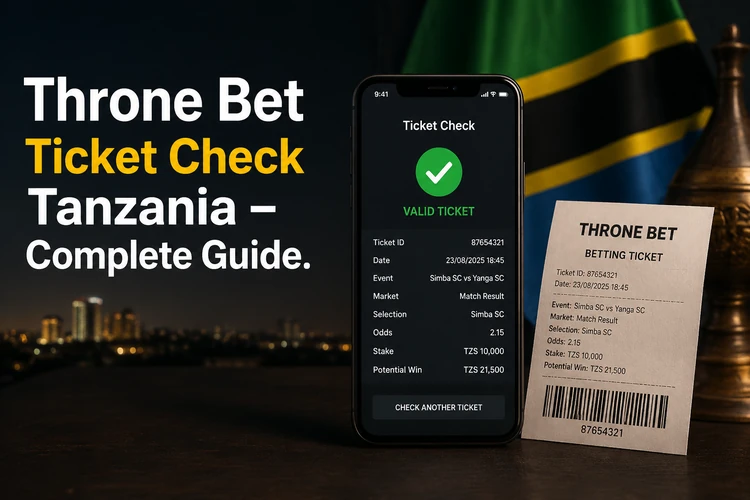
The browser-based process does not require special software. If you prefer checking on the go, the Throne Bet mobile app provides a camera scan for a physical slip. In either case, keep the number or code clear and enter it exactly as it appears on the ticket.
What a Throne Bet ticket contains
When you place a bet, the platform creates a digital record. That record, your betting ticket, holds the information tied to the wager in one place. Understanding each field helps you interpret the result correctly and spot an error before it causes confusion.
A standard ticket includes the unique ticket number assigned when the bet is placed, the date and time the bet was accepted, each selection with its individual odds, the total combined odds, the amount staked, and the calculated potential payout. A status field changes as events are settled. Depending on the ticket, it may show pending, won, lost, or a partially settled state when some legs of an accumulator have finished while others remain open.
The ticket is also useful as a record if you need help from customer support. Keep the complete number visible, together with the date and stake, but avoid sharing account passwords or payment details. If you have a printed slip, protect it from moisture and folds that could damage the barcode.
How to check a ticket on the website
The quickest route for most players is the ticket check page on the site. A single lookup uses the number or code printed on the slip, so logging in is not necessary for that purpose. Enter the details in the relevant field and review the ticket information returned by the system.
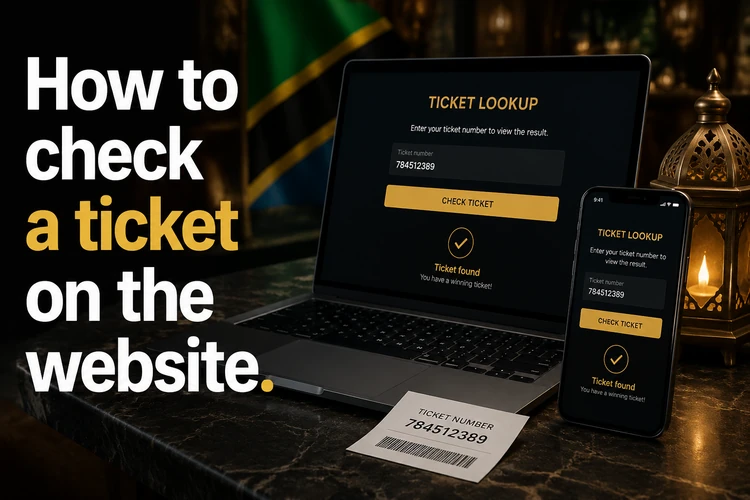
If you are already signed in, logging in to your account gives you access to your bet history rather than one ticket lookup. The account area is more useful when you want to review several wagers or filter them by date and settlement status. The standalone checker is better for a quick check when you have the ticket details at hand.
- Step 1: Open the ticket check page on the official site.
- Step 2: Locate the ticket number on the slip or in the confirmation message.
- Step 3: Enter the number in the appropriate field and select Check.
- Step 4: Review the selections, odds, stake, payout, and current status.
Before submitting, check that no digit has been omitted and that the input does not contain an accidental space. If the ticket was created only moments ago, give the record a short time to appear before trying again.
Using the ticket code
Some tickets carry a short alphanumeric ticket code as well as the full numeric identifier. The code is a compact reference to the same record. On a physical slip, it may appear below the barcode; for an online bet, it can be shown in the confirmation screen after the wager is accepted. Enter it exactly as printed, including the correct letters and numbers.
The code can be easier to type when the full ticket number is long. If the system returns a not found message, compare every character with the slip. The letter O and the digit 0, or the letter I and the digit 1, are easy to confuse. If the code still fails, use the full ticket number if available and contact support through the contact page with the ticket details. Do not send your account password.
Scanning a ticket with the mobile app
The Throne Bet app includes a scan feature that reads the barcode on a printed slip with the phone camera. This avoids manual entry when the ticket is physically available. The result should display the ticket information used for a manual lookup, subject to the slip being legible and the service being available.
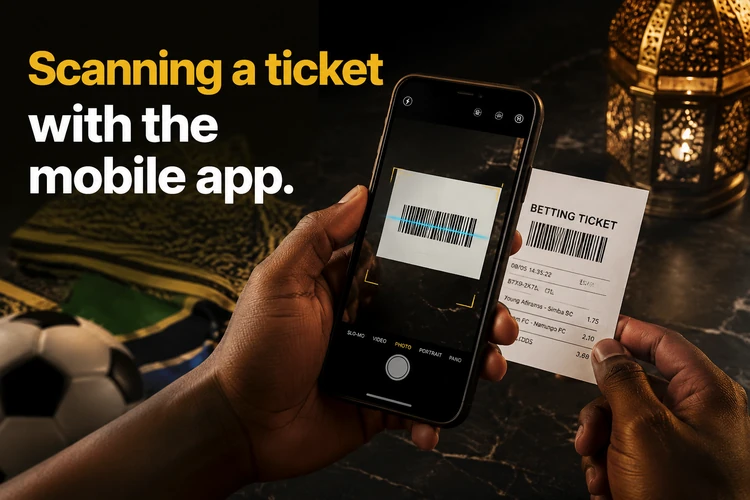
Open the app and go to the ticket section. Tap the scan control, allow camera access when prompted, and hold the barcode inside the frame. Good lighting and a flat ticket make recognition easier. If two attempts fail, use manual entry rather than repeatedly scanning a damaged or blurred barcode. The available app details are provided on the app download page.
- Step 1: Open the app and go to the ticket section.
- Step 2: Tap the scan control to activate the camera.
- Step 3: Grant camera permission if the phone asks for it.
- Step 4: Align the barcode within the on-screen frame in good light.
- Step 5: Wait for the ticket details to load before closing the screen.
Ticket pricing and potential payout
Checking a ticket does not add a charge. The cost associated with the ticket is the stake selected when the bet was created. Any minimum stake or other betting condition shown during placement should be checked before confirming the wager, because the ticket records the accepted amount rather than a later estimate.
The potential payout is calculated from the stake and the combined odds recorded on the ticket. Odds can change for new bets between placement and settlement, but the accepted ticket retains the details shown when it was created. The displayed payout is a potential amount, not a guarantee; the final status depends on the results and settlement of every selection.
Common problems and how to fix them
Most lookup errors come from input mistakes, a damaged barcode, or a short delay while a new ticket is added to the system. If a number is not found, compare it digit by digit with the slip. A single transposed number is enough to return no match. A ticket placed within the last few minutes may also need additional processing time.
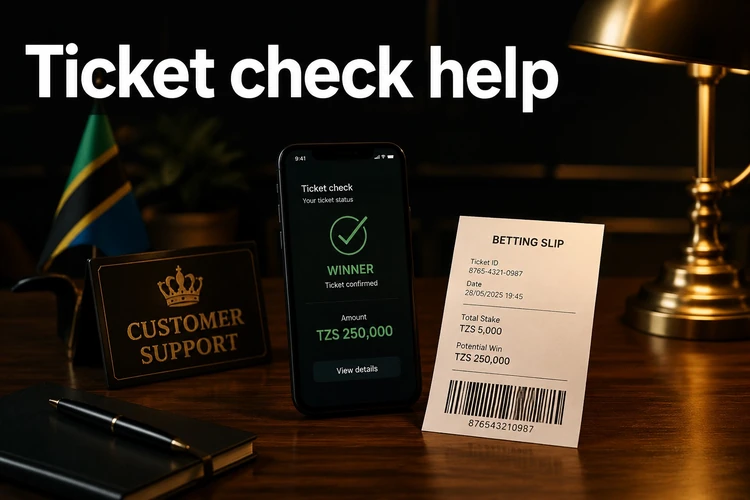
Authentication errors usually mean that a session has expired or the credentials do not match. Start a fresh session and enter the details carefully. If the app stops responding during a scan, close and reopen it once, then switch to the ticket number if the problem continues. A pending ticket after an event ends may simply be waiting for market settlement; the results page can help confirm whether the event has been settled.
| Error | Most likely cause | Practical response |
|---|---|---|
| Ticket not found | Mistyped number or recent placement | Re-enter it carefully and retry after a short delay |
| Code not recognised | Confused characters such as O and 0 | Compare the code character by character with the slip |
| Scan fails | Poor lighting or damaged barcode | Improve the light and use manual entry if needed |
| Status remains pending | Market has not been settled | Check the event result and allow time for settlement |
| Login error | Expired session or incorrect credentials | Start a new session and retry without sharing passwords |
Checking tickets in Tanzania
Players in Tanzania can use the ticket checker over mobile data or Wi-Fi. The mobile browser route is useful when you do not want to install an application, while the app can be more convenient when you regularly check printed slips. Connection quality affects loading and scanning, so move to a stronger signal if the page or camera tool does not respond.
The figures shown on a ticket should match the currency and stake used when the bet was placed. Registration is relevant for account history and other account features, while a one-off lookup uses the ticket information requested by the checker. Keep the original slip or confirmation details until the final status is clear. Players under 18 are not permitted to use the platform. 18+
Frequently Asked Questions
Open the ticket check page on the official website, enter the ticket number or code requested by the checker, and select Check. A single lookup does not require account login, but you need the details shown on the slip or confirmation screen.
The ticket number appears on the confirmation screen after a bet is accepted. On a printed slip, it is usually near the top or beside the barcode. Past tickets can also be available in your account history after you log in.
The ticket code is a shorter alphanumeric reference to the same ticket record. The ticket number is the longer identifier printed or displayed with the wager. Use whichever field the checker requests, entering every character exactly as shown.
The scan feature uses the mobile app camera to read the barcode on a printed slip. Open the ticket section, tap the scan control, allow camera access, and hold the barcode inside the frame. Good lighting and an undamaged barcode improve the result.
Some markets need additional time to settle after an event finishes. Check the event result on the platform and wait for the ticket status to update. If it remains pending for an unusually long period, contact support and provide the ticket number.
The ticket lookup itself does not add a charge on the website or in the app. The stake is the amount selected when the bet is placed, while any potential payout is determined by the accepted odds and the final settlement.